CLI
Used from the Terminal for rapid access to your Spaces
Installing
Download the PairSpaces CLI, pair, using the installer script for your Operating System.
> curl -fsSL https://get.pairspaces.io/install.sh | bash
> curl -fsSL https://get.pairspaces.io/install.sh | bash
> curl -fsSL https://get.pairspaces.io/install.sh | bash
> irm https://get.pairspaces.io/install.ps1 | iex
> pair version

3.0.0 (Latest)
> pair version

3.0.0 (Latest)
> pair version

3.0.0 (Latest)
> pair.exe version

3.0.0 (Latest)
Verifying the PairSpaces CLI for Linux
The PairSpaces CLI is verified when a new version is downloaded. The verification step can be reviewed in the installer script, install.sh, from GitHub.
Verifying the PairSpaces CLI for macOS
For macOS users the PairSpaces CLI is signed and notarized by Apple, Inc. It should not produce any security notifications on your Mac.
Verifying the PairSpaces CLI for Windows
For Windows users the PairSpaces CLI is signed using Azure Trusted Signing, a service provided by Microsoft, Inc. It should not produce any security notifications on your Windows PC.
Uninstalling
> curl -fsSL https://get.pairspaces.io/install.sh | bash -s -- --uninstall
> curl -fsSL https://get.pairspaces.io/install.sh | bash -s -- --uninstall
> curl -fsSL https://get.pairspaces.io/install.sh | bash -s -- --uninstall
# PowerShell
> $script = Invoke-RestMethod https://get.pairspaces.io/install.ps1
> & ([scriptblock]::Create($script)) -Uninstall
Updating
The PairSpaces CLI will indicate when it needs to be updated when you use it.
> pair spaces list

This version of PairSpaces CLI is out of date.
...
> pair spaces list

This version of PairSpaces CLI is out of date.
...
> pair spaces list

This version of PairSpaces CLI is out of date.
...
> pair.exe spaces list

This version of PairSpaces CLI is out of date.
...
To update the PairSpaces CLI, you can run the auto-updater:
> pair update
> pair update
> pair update
> pair.exe update
Signing In
Before using the PairSpaces CLI you will be asked to sign in using your PairSpaces account:
> pair spaces list

You are signed out. Signing you in...

1. Go to the browser that just opened. If a browser window did not appear, navigate to https://pairspaces.com/device/verify
2. Enter the user code M6R6I9IZ
3. When your session is created, return to this prompt
> pair spaces list

You are signed out. Signing you in...

1. Go to the browser that just opened. If a browser window did not appear, navigate to https://pairspaces.com/device/verify
2. Enter the user code M6R6I9IZ
3. When your session is created, return to this prompt
> pair spaces list

You are signed out. Signing you in...

1. Go to the browser that just opened. If a browser window did not appear, navigate to https://pairspaces.com/device/verify
2. Enter the user code M6R6I9IZ
3. When your session is created, return to this prompt
> pair.exe spaces list

You are signed out. Signing you in...

1. Go to the browser that just opened. If a browser window did not appear, navigate to https://pairspaces.com/device/verify
2. Enter the user code M6R6I9IZ
3. When your session is created, return to this prompt
PairSpaces CLI will open your default browser at a web page and ask you to sign in. After signing in, you will be asked to paste the code shared from the CLI into the form in the browser window. This will automatically sign you into the PairSpaces CLI.
Spaces
You can list the Spaces you created using pair spaces list. When you have no Spaces, this is the output from the PairSpaces CLI:
> pair spaces list

You have no spaces. Create one at https://pairspaces.com.
> pair spaces list

You have no spaces. Create one at https://pairspaces.com.
> pair spaces list

You have no spaces. Create one at https://pairspaces.com.
> pair.exe spaces list

You have no spaces. Create one at https://pairspaces.com.
After you create Spaces, the output from pair spaces list will be similar to this:
> pair spaces list

  Name				        Type
  -------------------------	----------------
• dynamic-stark			    Local
  -------------------------	----------------

• Online  • Offline  * Spaces shard with you
> pair spaces list

  Name				        Type
  -------------------------	----------------
• dynamic-stark			    Local
  -------------------------	----------------

• Online  • Offline  * Spaces shard with you
> pair spaces list

  Name				        Type
  -------------------------	----------------
• dynamic-stark			    Local
  -------------------------	----------------

• Online  • Offline  * Spaces shard with you
> pair.exe spaces list

  Name				        Type
  -------------------------	----------------
• dynamic-stark			    Local
  -------------------------	----------------

• Online  • Offline  * Spaces shard with you
Each Space is identified by its name, type, and status (green bullet (•) for Online and red bullet (•) for Offline). Spaces shared with you are indicated by an asterisk * beside their names.
Space Keys
Space Keys are permissions that the PairSpaces CLI uses to create Spaces and they include a list of people who can access the Space.
The PairSpaces CLI generates Space Keys when you run pair keys create. First, you will be prompted to select an Organization that you belong to:
> pair keys create

Select the Organization to work with.
↑/↓ to move, space to select, enter to confirm, q to cancel.

  1 item

> [ ] Dynamic Org

  ↑/k up • ↓/j down • / filter • q quit • ? more
Press q to cancel.
> pair keys create

Select the Organization to work with.
↑/↓ to move, space to select, enter to confirm, q to cancel.

  1 item

> [ ] Dynamic Org

  ↑/k up • ↓/j down • / filter • q quit • ? more
Press q to cancel.
> pair keys create

Select the Organization to work with.
↑/↓ to move, space to select, enter to confirm, q to cancel.

  1 item

> [ ] Dynamic Org

  ↑/k up • ↓/j down • / filter • q quit • ? more
Press q to cancel.
> pair.exe keys create

Select the Organization to work with.
↑/↓ to move, space to select, enter to confirm, q to cancel.

  1 item

> [ ] Dynamic Org

  ↑/k up • ↓/j down • / filter • q quit • ? more
Press q to cancel.
And then the team members who will share the Space with you:
Select users to share your Space with.
↑/↓ to move, space to select, enter to confirm, q to cancel.

  2 items

> [ ] bob@pairspaces.com
  [ ] charlie@pairspaces.com

  ↑/k up • ↓/j down • / filter • q quit • ? more
Press q to cancel.
Select users to share your Space with.
↑/↓ to move, space to select, enter to confirm, q to cancel.

  2 items

> [ ] bob@pairspaces.com
  [ ] charlie@pairspaces.com

  ↑/k up • ↓/j down • / filter • q quit • ? more
Press q to cancel.
Select users to share your Space with.
↑/↓ to move, space to select, enter to confirm, q to cancel.

  2 items

> [ ] bob@pairspaces.com
  [ ] charlie@pairspaces.com

  ↑/k up • ↓/j down • / filter • q quit • ? more
Press q to cancel.
Select users to share your Space with.
↑/↓ to move, space to select, enter to confirm, q to cancel.

  2 items

> [ ] bob@pairspaces.com
  [ ] charlie@pairspaces.com

  ↑/k up • ↓/j down • / filter • q quit • ? more
Press q to cancel.
Your Space Key is displayed in full in your Terminal. The Space Key cannot be retrieved from PairSpaces and you should store this Space Key securely.
Your Space Key is ready. Store this key securely — it cannot be retrieved from PairSpaces.

Live key: ps_live_7ATuLopVXIx_...
Your Space Key is ready. Store this key securely — it cannot be retrieved from PairSpaces.

Live key: ps_live_7ATuLopVXIx_...
Your Space Key is ready. Store this key securely — it cannot be retrieved from PairSpaces.

Live key: ps_live_7ATuLopVXIx_...
Your Space Key is ready. Store this key securely — it cannot be retrieved from PairSpaces.

Live key: ps_live_7ATuLopVXIx_...
Creating Spaces
To create a Space, use pair spaces create with your Space Key:
> export PS_SPACE_KEY=ps_live_7ATuLopVXIx_...
> ./pair spaces create

Your new Space is 'dynamic-stark'.

Your team can connect to your Space now. Use Ctrl-C to close the connection.
> export PS_SPACE_KEY=ps_live_7ATuLopVXIx_...
> ./pair spaces create

Your new Space is 'dynamic-stark'.

Your team can connect to your Space now. Use Ctrl-C to close the connection.
> export PS_SPACE_KEY=ps_live_7ATuLopVXIx_...
> ./pair spaces create

Your new Space is 'dynamic-stark'.

Your team can connect to your Space now. Use Ctrl-C to close the connection.
PowerShell/CMD does not support hosting Spaces from Windows.
Connecting to a Space Shared with You
For Spaces that are shared with you, you can connect to the Space using the command line or your favorite IDE.
> pair spaces list

  Name				        Type
  -------------------------	----------------
• dynamic-stark (*)			Cloud
  -------------------------	----------------

• Online  • Offline  * Spaces shard with you
> pair spaces list

  Name				        Type
  -------------------------	----------------
• dynamic-stark (*)			Cloud
  -------------------------	----------------

• Online  • Offline  * Spaces shard with you
> pair spaces list

  Name				        Type
  -------------------------	----------------
• dynamic-stark (*)			Cloud
  -------------------------	----------------

• Online  • Offline  * Spaces shard with you
> pair.exe spaces list

  Name				        Type
  -------------------------	----------------
• dynamic-stark (*)			Cloud
  -------------------------	----------------

• Online  • Offline  * Spaces shard with you
To access a shared Space use pair spaces connect SPACE_NAME.
You can access the command line in a shared Space:
> pair spaces connect dynamic_stark
   ,     #_
   ~\_  ####_        Amazon Linux 2023
  ~~  \_#####\
  ~~     \###|
  ~~       \#/ ___   https://aws.amazon.com/linux/amazon-linux-2023
   ~~       V~' '->
    ~~~         /
      ~~._.   _/
         _/ _/
       _/m/'
[ec2-user@ip-10-0-17-17 ~]$
> pair spaces connect dynamic_stark
   ,     #_
   ~\_  ####_        Amazon Linux 2023
  ~~  \_#####\
  ~~     \###|
  ~~       \#/ ___   https://aws.amazon.com/linux/amazon-linux-2023
   ~~       V~' '->
    ~~~         /
      ~~._.   _/
         _/ _/
       _/m/'
[ec2-user@ip-10-0-17-17 ~]$
> pair spaces connect dynamic_stark
   ,     #_
   ~\_  ####_        Amazon Linux 2023
  ~~  \_#####\
  ~~     \###|
  ~~       \#/ ___   https://aws.amazon.com/linux/amazon-linux-2023
   ~~       V~' '->
    ~~~         /
      ~~._.   _/
         _/ _/
       _/m/'
[ec2-user@ip-10-0-17-17 ~]$
> pair.exe spaces connect dynamic_stark
   ,     #_
   ~\_  ####_        Amazon Linux 2023
  ~~  \_#####\
  ~~     \###|
  ~~       \#/ ___   https://aws.amazon.com/linux/amazon-linux-2023
   ~~       V~' '->
    ~~~         /
      ~~._.   _/
         _/ _/
       _/m/'
[ec2-user@ip-10-0-17-17 ~]$
You can also access them using your IDE. Using VSCode, you can use its Remote-SSH: Connect to Host command, select the SPACE_NAME that you want to access, and you will see the following.
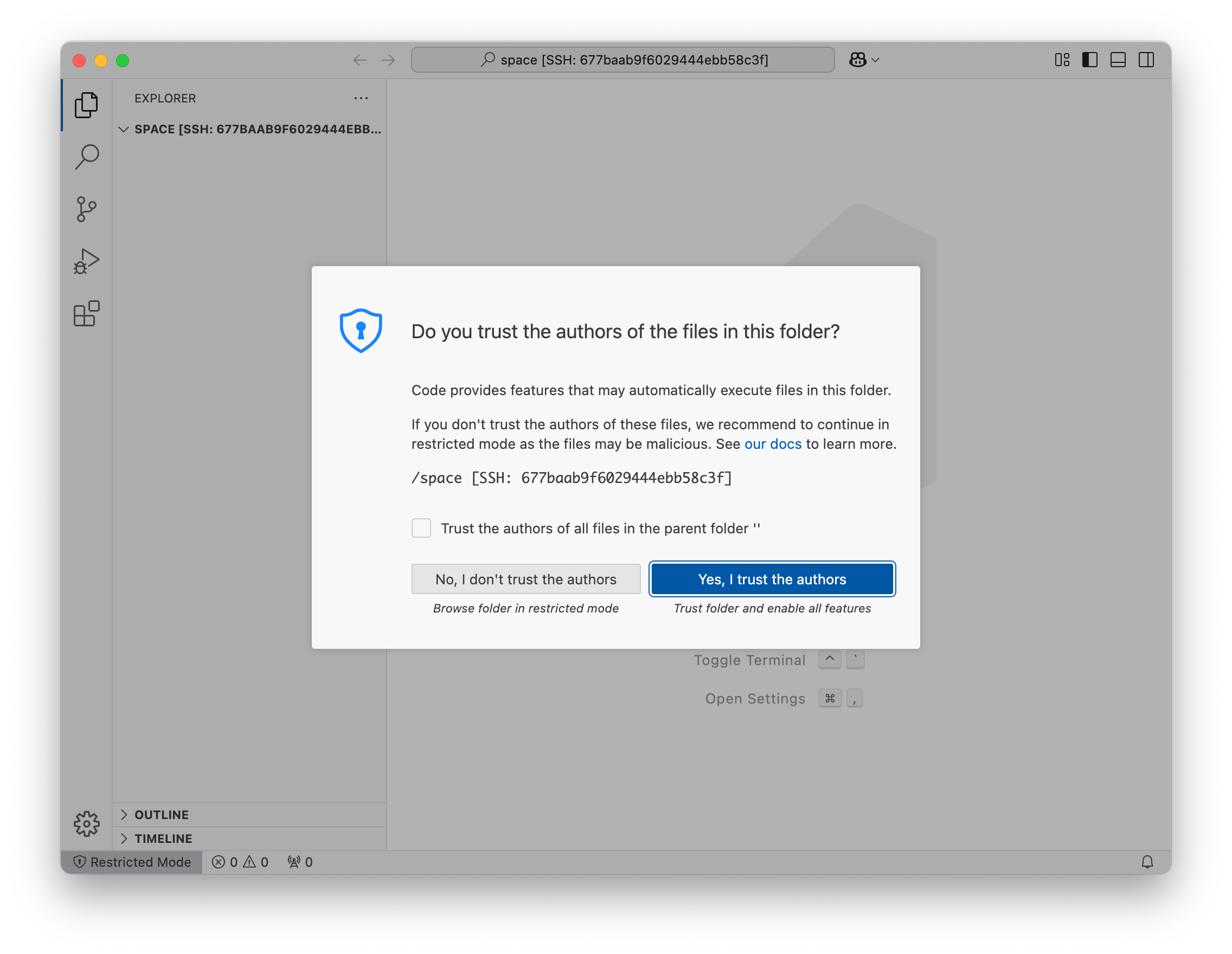
Check the checkbox to trust all files in the parent folder and click Yes, I trust the authors.